
Mapper Interactive Manual
Engine-owned manual for the stock interactive Mapper. Project-specific map catalogs, prototypes, editor tabs, scripts, validation rules, and release acceptance belong in the embedding game.
Use this page when editing maps by hand. Use Mapper Tools
for mapper-side AngelScript, headless map processing, render capture, and
automation APIs. Use Map Format for the serialized .fomap
contract and Particle Authoring Tools for the
particle windows shown below.
Build and launch
Enable the Mapper in the embedding project’s configure preset and build both resources and the application:
cmake --build Build/<preset> --config RelWithDebInfo --target BakeResources <DevName>_Mapper
Launch the generated Mapper with the project’s main config. A startup map is optional:
<output>/Binaries/Mapper-<platform>-<arch>/<DevName>_Mapper \
  -ApplyConfig <path-to-project.fomain> \
  -Mapper.StartMap <DeclaredMapName>
The executable consumes baked client resources for rendering and the raw input directories declared by resource packs for map and source-asset editing. If a prototype, image, effect, particle, or script changed, bake before judging the editor. A successful executable launch does not prove that its resources are current.
Mapper.StartMap names a declared [ProtoMap], not necessarily a filename.
Mapper.StartHexX and Mapper.StartHexY can move the initial camera when both
are positive. Project launch tasks should own exact paths and subconfigs rather
than asking every author to reconstruct them.
Screen orientation
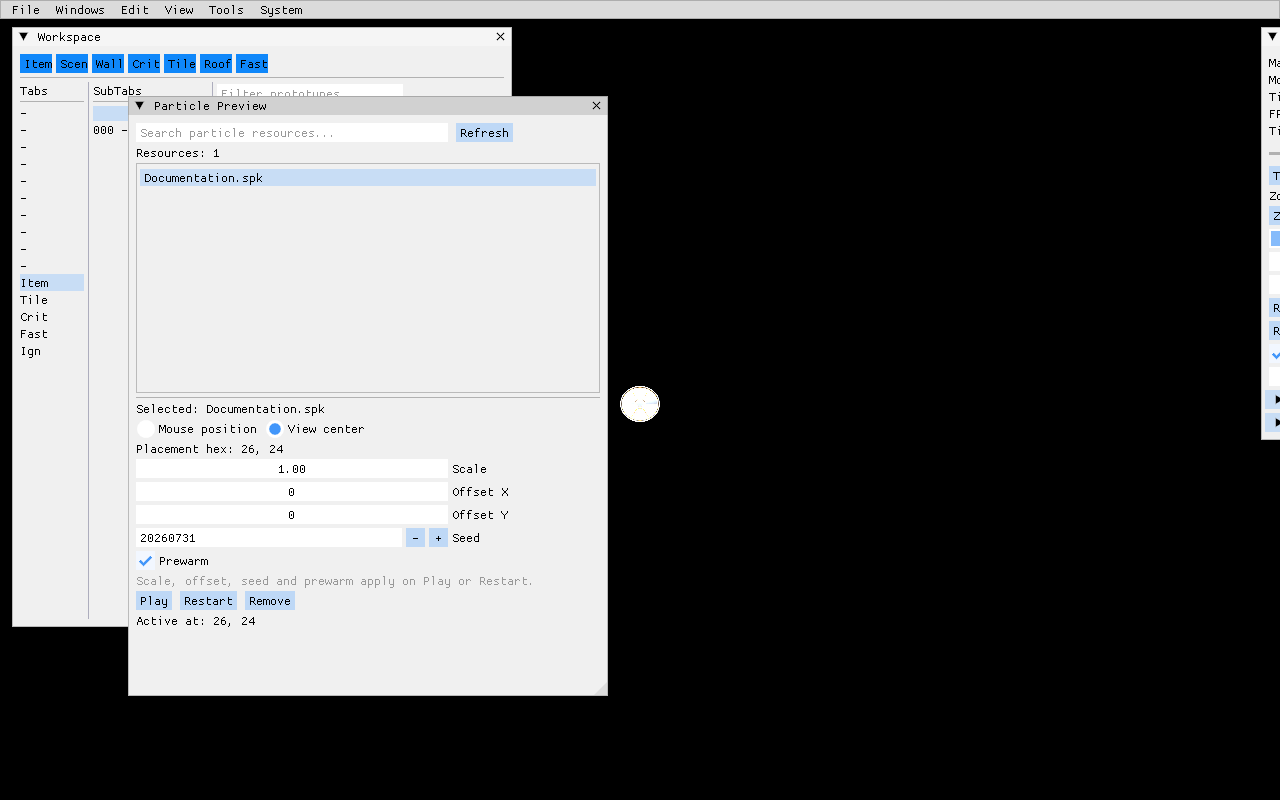
The main viewport is the map. The menu bar and floating ImGui windows are tools
over that viewport; they are not serialized into the map. Window positions and
visibility are per-user tool settings. A restored layout may therefore differ
from the first launch. Windows -> Settings -> Reset layout returns tool
windows to their first-use positions without changing map data.
The normal work surfaces are:
| Surface | Purpose |
|---|---|
| Map browser | Filter every declared map, open it, and distinguish the current (*) and already loaded (+) entries. |
| Controls | Inspect the current map, mouse hex, time, FPS, tile layer, zoom, visibility, selection policy, roof preview, and critter direction. |
| Workspace | Filter and place item, tile, critter, and project-defined prototypes through tabs and subtabs. |
| Content | Inspect container contents, loaded maps, map creation/loading/saving, resize controls, and mapper messages. |
| Inspector | Edit the selected entity’s typed properties, arrays, and structs; reset values to the prototype and optionally apply an edit to all selected peers. |
| History | Inspect and jump through the current map’s undo/redo history. |
| Console | Run mapper commands and review command history. |
Map browser and Controls start visible in a fresh layout. Workspace remains
available from the Windows menu; Content uses Shift+F7. F7 hides or
restores the entire ImGui interface so the map can be inspected or captured
without editor chrome. Because the menu bar is hidden too, F7 is the only way
back from that mode. The Inspector appears with F9 when an entity or container
item is selected.
Menu reference
File
| Command | Behavior |
|---|---|
Save current (Ctrl+S) |
Serialize the current map through its resolved source container. |
| Reset changes | Reload the current map from its last saved source state. |
| Exit | Request normal Mapper shutdown. |
A dirty current map adds a visible *** Save *** button at the right edge of
the menu bar. Treat that marker as unsaved authored state. Save intentionally;
do not assume process exit commits it.
Windows
The menu opens Workspace, Content, Console, Critter animations, Animation viewer, Particle viewer, Script call, Map browser, Controls, History, particle backend tools, and Settings. Backend entries are conditional:
- Particle preview appears when at least one particle runtime backend is enabled.
- SPARK particle editor appears only with
FO_SPARK_PARTICLES. - Effekseer authoring remains in the external pinned Effekseer editor; Mapper
previews its baked
.efkoutput.
The focused standalone viewers are documented in Animation and Particle Viewers.
Edit
Undo and redo show the current operation label when one exists. Select all, clear selection, delete, copy, cut, and paste operate on mapper entities and participate in map history. Copy/paste uses the Mapper’s in-process entity buffer, not an interchange format or the operating-system clipboard.
View
Visibility toggles cover Items, Scenery, Walls, Critters, Tiles, Roof, and
Fast. Changing one rebuilds the current map so the result is immediate.
Axial grid selection chooses the selection lattice. Select entire entity
controls whether selection expands from a visual component to its owning
entity.
Visibility is an authoring aid. It does not remove content or prove runtime visibility, blocking, lighting, or ownership.
When Map.ScrollAxialArea is nonzero, camera clamping keeps one complete map
hex inside each configured edge, so the boundary row itself is outside the
view. A zero rectangle leaves the whole map scrollable.
Tools
| Command | Intended use |
|---|---|
| Rebuild map | Recreate current map presentation after relevant data or visibility changes. |
| Mark blocked hexes | Visualize blocked cells for authoring inspection. |
| Reverse lights | Run the mapper reverse-light command. |
| Merge by command / Break by command | Run project command handlers for item composition. |
| Merge multihex items / Break multihex items | Convert between compatible item sets and multihex meshes. |
Merge and break are structural changes. Review selection, ownership, offsets, blocking, and undo history before saving.
System
System toggles fullscreen (F11), minimizes (F12), dumps texture atlases,
and controls edge scrolling for the active window mode. Atlas dumps are
diagnostic output; they are not authored resources.
Open and inspect a map
- Bake the current project resources.
- Launch the project-owned Mapper task or executable.
- Open Map browser, filter by declared map name, and select the map.
- Confirm the map name in Controls.
- Inspect size, work hex, fixed/outside behavior, and authored sections against Map Format.
- Toggle one content class at a time when a dense map is hard to read.
- Open Content to confirm loaded-map state and source destination before editing.
The Mapper may keep multiple maps loaded while showing one current map. Current, loaded, and saved are separate states. Closing a tab or changing the current map does not silently make another map’s dirty state authoritative.
Place and edit entities
Workspace tabs are driven by loaded prototypes and project script customization. The stock modes include Item, Tile, Critter, Fast, Ignore, Inventory, Messages, Maps, and ten custom slots.
- Open Workspace from the Windows menu.
- Choose a tab and subtab.
- Filter by prototype name when the collection is large.
- Select a prototype preview to enter placement mode.
- Left-click a valid map hex to place it.
- Right-click or press
Escapeto leave placement mode. - Select the new entity and press
F9to inspect instance properties. - Save only after validating direction, offsets, ownership, blocking, and project-required fields.
The Inspector parses values through the same property system used by mapper
automation. It supports scalar values, arrays, and registered structs. Invalid
text is not a partial edit. PageUp and PageDown move through property
rows; Escape first cancels the active property edit, then clears selection or
placement.
Use Apply to all only for a deliberately homogeneous selection. A property with the same display name can still carry prototype-specific meaning in the embedding project.
For a dynamic item, Inspector also marks stored unsynchronized Common configuration as read-only. This includes constant project properties without Persistent. Use a prototype variant for permanent differences; the named text API rejects invalid overrides before changing any selected sibling or dirty/history state. Repeating a value equal to the prototype is accepted without making the map dirty. Loading, creating, copying and saving items enforce the same rule, and MapBaker checks source files independently. Automatic multihex coalescing is restricted to static items.
Selection, movement, and clipboard
Left-click selects or places according to the current mode. Drag selection and movement are committed as history entries when the interaction finishes. Right-drag pans the map and preserves inertial motion; a right click without a pan cancels placement or selection context. Arrow keys scroll.
Middle-click invokes the current context action: it can rotate selected
critters or the particle preview direction, and returns zoom to 1.0.
Use Controls when direction or current zoom must be explicit.
Copy, cut, and paste preserve mapper entity data in an internal buffer. After pasting:
- confirm the destination hex and offsets;
- inspect placement IDs and ownership;
- verify multihex and blocking behavior;
- check references that may not be valid outside the source map;
- review the resulting history entry before save.
For serialized placement identity and section ownership, use Map Format.
Keyboard reference
Hotkeys are suppressed while an ImGui text field is active.
| Key | Action |
|---|---|
F1 .. F6 |
Toggle Items, Scenery, Walls, Critters, Tiles, and Fast visibility. |
F7 / Shift+F7 |
Hide or restore the complete ImGui interface / toggle Content. |
F8 |
Toggle edge scrolling for the current fullscreen/windowed mode. |
F9 |
Open Inspector for selection, or clear selection when Inspector is visible. |
F10 |
Toggle the mapper hex overlay. |
F11 / F12 |
Toggle fullscreen / minimize. |
Shift+F11 |
Dump texture atlases. |
Shift+0 .. Shift+4 |
Choose tile layer 0 through 4. |
Tab / Shift+Tab |
Toggle axial-grid selection / whole-entity selection. |
Delete |
Delete selected entities. |
Escape |
Cancel property edit, clear selection, or leave placement mode. |
Numpad + / - |
Shift map time by plus/minus one hour when nothing is selected. |
Ctrl+Z / Ctrl+Y |
Undo / redo. |
Ctrl+A |
Select all. |
Ctrl+C / Ctrl+X / Ctrl+V |
Copy / cut / paste. |
Ctrl+S |
Save current map. |
Ctrl+D |
Toggle camera scroll checking for the current map. Keep it enabled during normal interactive work; disable it deliberately for overscan inspection. |
Ctrl+B |
Mark blocked hexes, equivalent to Tools -> Mark blocked hexes. |
~ |
Toggle Console. |
| Arrow keys | Scroll the current map. |
Undo, reset, and save discipline
History is per current map and bounded; it is not a source-control replacement. Use it for local authoring operations, then review the serialized diff.
Before saving:
- Confirm the intended map and source container.
- Check the dirty marker and most recent History entries.
- Inspect changed entities and their placement IDs.
- Rebuild the map if visibility or composition changed.
- Save with
Ctrl+S. - Review the text diff.
- Run project format/prototype/map validation and rebake.
- Validate the map in a runtime scene, not only in Mapper.
Reset changes discards the current map’s unsaved edits and restores the source version. Source control remains the recovery path after a saved mistake.
Settings and layout recovery
Settings lists the current resolution, fullscreen state, popular resolutions,
and Reset layout. Window layout is stored separately from baked resources:
the registry under HKCU\Software\FOnline\Mapper on Windows and the
per-application user-data store on other platforms.
Reset layout when windows are off-screen after a monitor or DPI change. Do not delete resource caches or rebake merely to repair an ImGui layout.
Particle and viewer windows
Use Particle Preview for map-context placement, deterministic seed/prewarm,
scale, offsets, restart, and removal. Use Particle Viewer for isolated
playback and viewport diagnostics. Use the SPARK editor only on authored
.spark sources. The complete choice and validation workflow is in
Particle Authoring Tools.
Screenshot and automation contract
The mapper script API exposes one screenshot method:
| Method | Frame contents | Completion |
|---|---|---|
Game.SaveMapperScreenshot(path) |
Current map render target and mapper script interface drawing; excludes the later application-level ImGui composition. | Synchronous PNG write. |
There is no Engine script method for full-window UI capture. The minimal multiplayer example provides a reproducible visible profile; after its windows settle, capture the application window with a platform screenshot tool:
cmake --build Build\windows --config Release --target ForceBakeResources FOMM_Mapper
Build\windows\Binaries\Mapper-Windows-win64\FOMM_Mapper.exe `
  -ApplyConfig FOnlineMinimalMultiplayer.fomain `
  -ApplySubConfig MapperDocumentationCapture
The profile opens TutorialMap, starts Documentation.spk with a fixed seed,
and fixes the viewport at 1280x800. The checked-in PNG and complete source
hashes are recorded in
generated/screenshots.json.
Use Render.HeadlessWindow = True for off-screen map rendering, but not
Render.NullRenderer: a null renderer cannot produce a visual frame.
Failure diagnosis
| Symptom | Check |
|---|---|
| Map is absent from Map browser | Prototype input roots, Baking.ProtoFileExtensions, declared [ProtoMap] name, and bake/config selection. |
| Prototype is absent from Workspace | Resource pack inclusion, prototype bake, collection name, and project tab scripts. |
| Map renders black | Whether the map is intentionally empty, current zoom/hex, missing tiles/images/effects, and renderer log. |
| Edit appears but cannot save | Source path resolution, read-only files, multi-map container ownership, and mapper messages. |
| Inspector rejects a value | Generated property type, enum spelling, array/struct syntax, nullability, and prototype constraints. |
| Particle source is listed but preview is not | Enabled backend, baked .spk/.efk, referenced effect/texture, bounds, seed/prewarm, and log exceptions. |
| Windows are missing or off-screen | Open Windows menu, then use Settings -> Reset layout. |
| UI screenshot contains only the map | SaveMapperScreenshot is map-only; capture the visible application window with a platform screenshot tool. |
Treat ScriptException, VerificationException, assertion/fatal lines,
missing resource logs, failed saves, and invalid map declarations as failures.
Do not publish a screenshot or map because the process merely returned zero.
Project-owned completion gate
An embedding project should add:
- a documented launch task and representative map;
- project tab/filter conventions;
- property and placement rules;
- content and map validators;
- a clean bake;
- runtime scene acceptance on supported renderers;
- screenshot provenance when project docs show concrete assets;
- an update rule that reviews this manual and Mapper Tools whenever its Engine pin changes.
The interactive Mapper is an authoring surface. The serialized source, project tests, and runtime behavior remain the authority.